Which AI Support Chatbot Works Across Website, WhatsApp, Slack, and Messenger?
BoundBot runs one AI support bot on your website, WhatsApp, Slack and Messenger, with every thread in one inbox. Here is what each channel needs, which plan covers all four, and how to check any other tool.
23 Nov 2026•7 min read

SEO & Content Marketing Specialist
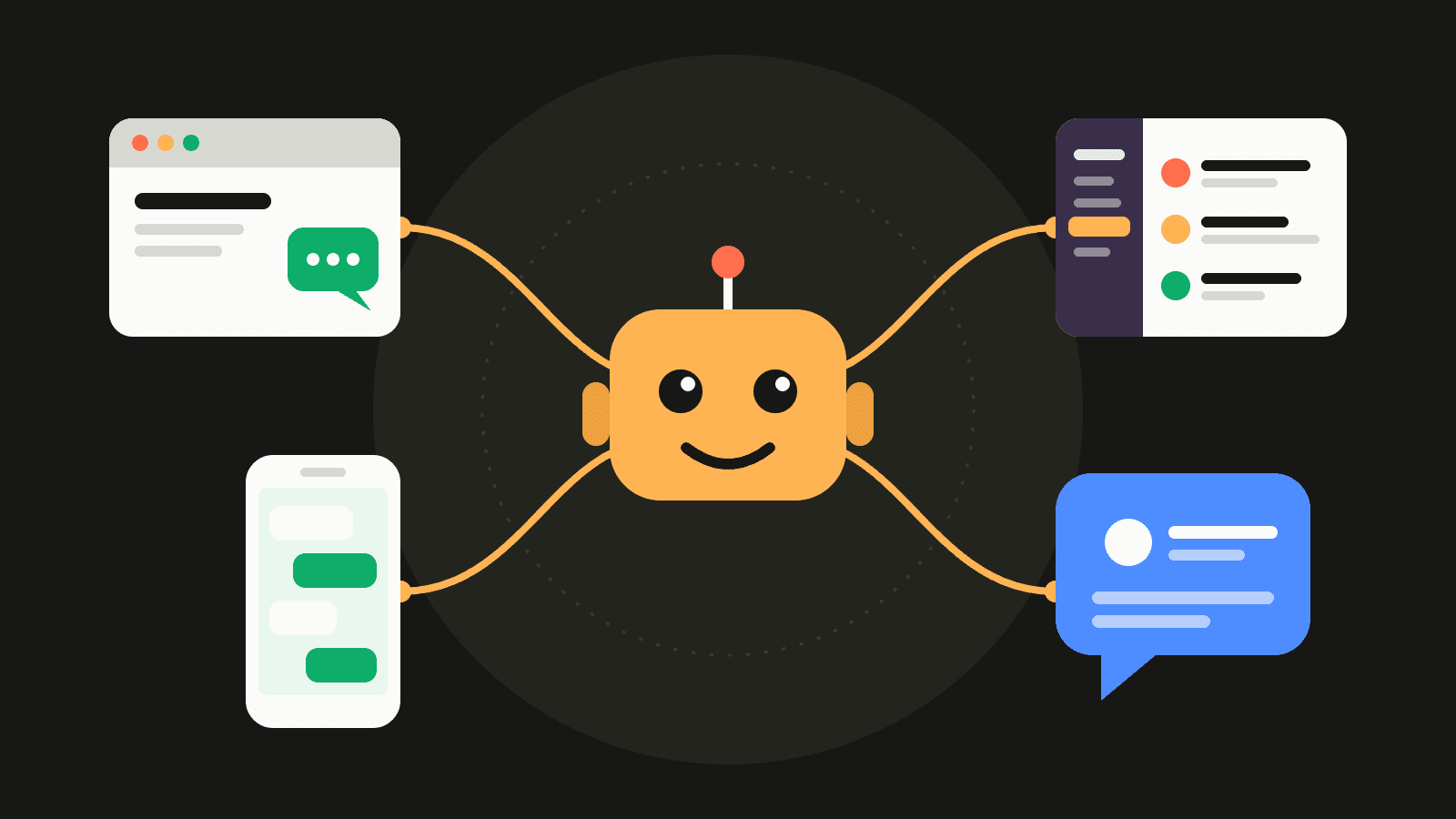
BoundBot is an AI support chatbot that works across a website chat widget, WhatsApp, Slack and Messenger, and it also covers Telegram and Discord. You attach the same bot to each channel, it answers from one knowledge base, and every conversation lands in one shared inbox where a person can step in. All four channels together need the Pro plan, because Slack starts at Pro.
The rest of this guide explains what that looks like in practice, what each channel asks of you during setup, and a short checklist you can use on any chatbot tool before you pay for it.
Which AI support chatbot works across website, WhatsApp, Slack, and Messenger?
Plenty of tools cover two or three of these. The combination is harder, because the four channels are different kinds of places. A website widget and Messenger are where strangers ask a first question. WhatsApp is where customers follow up. Slack is a workspace, used mostly by your own team or a community you run.
BoundBot lists all four as channel types in its dashboard, along with Telegram and Discord. The channels overview in the docs describes a channel as the connection between a bot and a platform: every channel points to a bot, and conversations that arrive through it are handled by that bot.
That design is what makes the answer a real yes. You are not building four bots. You build one, give it your FAQs, files and website pages, and then connect it to each place people message you.
What each of the four channels needs
The table below is taken from the BoundBot docs and the pricing page, both checked on 23 November 2026.
Swipe to view all columns →
| Channel | Best used for | What you need to connect it | Plan |
|---|---|---|---|
| Website (WebChat) | Pre-sales questions and support while the visitor is on your site | A snippet added to your site. You can set colours, position and suggested messages. | All plans, including Free |
| Follow-ups and ongoing support in an app customers check daily | A WhatsApp Business account and phone number, connected through Meta's signup flow | Starter and above | |
| Messenger | Questions sent to your Facebook Page | Admin access to the Facebook Page, approved through Meta. Labelled Beta in the dashboard. | Starter and above. The pricing page also lists one Messenger Page on Free. |
| Slack | Internal team questions, partner or community workspaces | Permission to approve an app in the Slack workspace | Pro and above |
Website chat
This is the fastest channel to launch and the only one that needs no outside account. The WebChat guide covers the embed code and the widget settings. Start here, because it lets you test the bot's answers before customers on other apps see them.
WhatsApp is connected through Meta, either in a popup (Embedded Signup) or a full redirect. Most connection problems come from Meta permissions, so check those first. One rule to know: Meta only lets a business send free-form replies during a 24-hour customer service window that opens when the customer messages you, as explained in Meta's WhatsApp documentation. An AI bot that answers within seconds stays inside that window easily.
Messenger
You pick the bot, continue with Meta, approve the permissions and choose the Facebook Page. BoundBot marks Messenger as Beta, so send a few test messages from a personal account before you announce it.
Slack
Slack connects with a standard app approval. Slack's own docs describe how OAuth installs an app into a workspace. The bot replies inside the workspace you authorise, and those threads sync to the BoundBot inbox. The docs suggest testing in a private channel first.
Slack is not like the other three: Your shoppers are probably not in your Slack. Treat Slack as the channel for staff questions (policies, product details, how-to answers) or for a customer community you host there. Website chat, WhatsApp and Messenger are the public-facing channels.
How one bot stays consistent on four channels
The risk with multi-channel support is four slightly different answers to the same question. With one bot behind every channel, there is one source of truth:
- One knowledge base. FAQs, uploaded files and crawled website pages feed the same bot, so a refund answer on WhatsApp matches the one on your website.
- One set of instructions. The bot's system prompt sets tone and limits once.
- Keyword rules. Fixed replies for exact phrases, useful for things that must never be improvised. See routing chatbot messages by topic or keyword.
- One inbox. The inbox combines WebChat, WhatsApp, Messenger, Telegram, Slack and Discord threads, and you can filter by channel.
A person can take over any thread. Open it in the inbox, type a reply, and it goes out on the channel the customer used. If you want the bot to stay silent in that conversation, mute auto reply and it will not answer again until someone turns it back on.
You can also split the work if you prefer. A common setup is one bot for customers on website, WhatsApp and Messenger, and a second bot with internal documents for the team in Slack. Pro allows up to 10 bots, so both approaches fit.
What it costs to cover all four
Because Slack starts at Pro, Pro is the plan that covers website, WhatsApp, Slack and Messenger together. On 23 November 2026 the pricing page showed Pro at $29.99 per month in USD (a discounted price, with $89.97 shown as the regular price). It includes 60,000 monthly credits, which is about 6,000 AI replies at 10 credits each, up to 10 bots, 20 channels and 10 team members.
If you do not need Slack, Starter covers website, WhatsApp, Messenger and Telegram. It was shown at $9.99 per month on the same date, with 7,500 monthly credits. Paid plans have a three-day trial that needs a card. The Free plan needs no card and is enough to test the website widget. Prices and discounts change, so confirm on the pricing page before you budget.
For a fuller budget walk-through, see multi-channel chatbot pricing for a small team.
A checklist for any chatbot that claims these channels
Use these questions on BoundBot or on any other tool. A channel logo on a homepage does not tell you much.
- Is each channel native? Check the docs for a setup guide per channel. If Slack or WhatsApp only works through a third-party connector, expect extra cost and delay.
- Which plan unlocks each channel? Tools often put WhatsApp or Slack on a higher tier. Price the plan that covers all four, not the entry plan.
- Is it one bot or four? Ask whether one knowledge base serves every channel or whether you must copy content between bots.
- Where do replies show up? You want one inbox with the channel shown on each thread, and a clear way to pause the bot in one conversation.
- What counts as usage? Find out whether you pay per reply, per conversation, per seat or per channel.
- Can you test before customers see it? Look for a test mode or a private channel option.
If you want to compare several tools side by side, our comparison of multi-channel chatbot platforms is a good place to start.
A sensible order to set it up
Connecting four channels in one afternoon is possible, but a staged rollout catches mistakes while few people can see them.
- Create the bot and add your FAQs, key files and website pages.
- Launch website chat and read the first real conversations. Fix weak answers in the knowledge base, not thread by thread.
- Add Messenger, then WhatsApp. Send test messages and confirm each thread appears in the inbox under the right bot.
- Add Slack last, in a private channel, then open it to the team.
- Agree who watches the inbox and when a person takes over.
The multi-channel chatbot setup guide walks through the connection steps in more detail.
Frequently asked questions
Which chatbot platform supports SMS, WhatsApp, and web?
BoundBot supports WhatsApp and web chat, but its docs do not list SMS as a channel. If SMS is a must, check a tool's docs for a native SMS channel and ask how messages are billed, since carriers charge per text.
What tool allows multiple chatbot integrations in one platform?
Look for a tool that treats channels as connections to one bot. In BoundBot you connect WebChat, WhatsApp, Messenger, Telegram, Slack and Discord from one Channels page, and the Pro plan allows up to 20 channel connections.
How does a chatbot handle multi-channel deployment across websites, Messenger, and Slack?
Each channel is connected once and pointed at a bot. Messages come in from that platform, the bot answers from its knowledge base, and the reply goes back on the same platform. The conversation is also stored in a shared inbox so a person can read it or take over.
Do I need a developer to connect these channels?
No for the connections themselves. Website chat is a pasted snippet, and WhatsApp, Messenger and Slack use approval screens from Meta and Slack. You do need admin rights on the Facebook Page, the WhatsApp Business account and the Slack workspace.
Next step
The low-risk way to find out whether this fits is to start with one channel. You can create a free BoundBot account, put the widget on your website, and see how the bot answers your real questions before adding WhatsApp, Messenger or Slack.
LAUNCH THE AGENT. KEEP THE HUMAN CONTROL.
START FREE, CONNECT A CHANNEL, AND SHIP YOUR FIRST BOUNDBOT IN MINUTES.