How to Build A Multi-Channel Chatbot Setup (WhatsApp, Instagram, Telegram & WebChat
Set up one AI bot across WhatsApp, Instagram, Telegram, and your website. This multi-channel chatbot setup guide shows the exact steps to get started fast.
27 Mar 2026•5 min read

SEO & Content Marketing Specialist
Why One AI Bot Across Multiple Channels Actually Matters
Most businesses today are not short of messages.
They are short of a system to handle them properly.
A customer might message you on Instagram, follow up on WhatsApp, and finally visit
your website to take action. From their side, it feels like one continuous conversation. But on your side, it often turns into separate chats across different tools, with no shared context and no clear flow.
This disconnect creates small gaps that add up quickly. Replies get delayed, users repeat the same questions, and potential leads drop off before you even realize it. As messaging platforms continue to grow, this problem only becomes more visible.
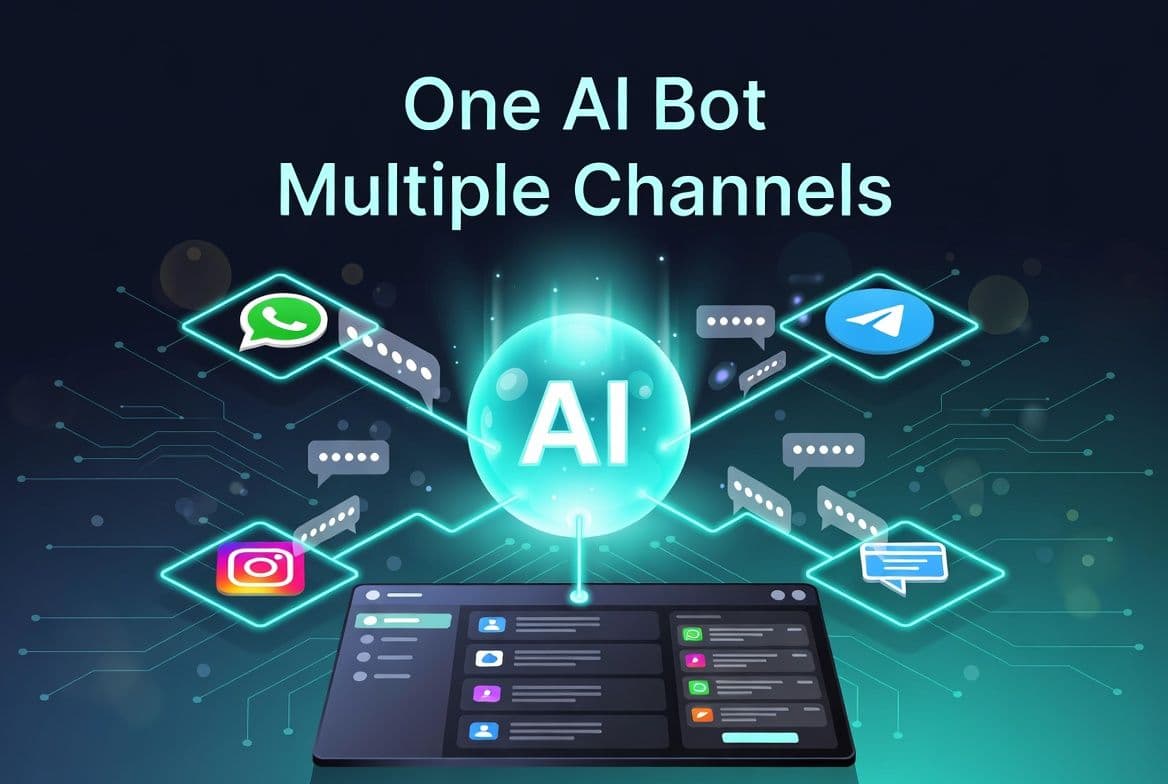
That’s why businesses are shifting toward a multi-channel chatbot setup, where one AI bot is deployed across WhatsApp, Instagram, Telegram, and web chat. Instead of managing each platform separately, everything connects to a single system that handles conversations, maintains context, and responds instantly no matter where the user comes from.
In this guide, you’ll learn how to deploy one AI bot across multiple channels step by step, including how each platform connects, what limitations you need to consider, and how everything comes together inside a unified inbox.
How One AI Bot Handles Conversations Across Multiple Channels
Managing multiple channels sounds complex.
But the system behind it is actually simple.
You don’t need different bots for WhatsApp, Instagram, Telegram, and your website.
You need one AI bot that connects to all of them.
Each platform is just a different place where users start a conversation. The real work happens in one central system that reads messages, understands them, and replies instantly.
How the System Works:
The process is simple once everything is connected:
- A user sends a message from WhatsApp, Instagram, Telegram, or your website
- The message is received inside your bot system
- The bot reads it using your website content, FAQs, or uploaded data
- A reply is generated instantly
- The response is sent back through the same platform
- The conversation appears in one shared inbox
From the customer’s side, it feels like a normal chat.
From your side, everything is organized and easy to manage.
Why Businesses Prefer This Setup
Managing each platform separately creates extra work and delays. A connected system makes things much easier.
With one AI bot, you can:
- reply faster without switching between apps
- manage all chats from a single dashboard
- keep responses consistent across platforms
- avoid missing important messages
This is especially helpful for support teams and growing businesses that handle a high number of conversations daily.
How Platforms Like BoundBot Make It Easier
Instead of building complex integrations, platforms like BoundBot let you connect multiple channels from one dashboard.
You can:
- train your bot using your website or documents
- connect WhatsApp, Instagram, Telegram, and web chat
- manage all conversations in one unified inbox
This removes the need to manage separate tools for each platform.
Once you understand this setup, the next step becomes much easier. Let’s now build your core AI bot so it can handle conversations properly before connecting any channel.
Step 1: Build Your Core AI Bot Before Connecting Any Channel
Before you connect WhatsApp, Instagram, Telegram, or your website, you need to set up your bot properly.
This is the most important step.
Because once your bot goes live across multiple channels, it will respond everywhere in the same way. So it’s better to get the foundation right first.
Create Your Bot :
Start by creating your bot inside your dashboard.
- Click Create New Bot
- Give it a clear name (like “Support Bot” or “Sales Assistant”)
- Set how the bot should behave
Add Knowledge So Your Bot Can Answer Properly
Your bot needs real information to give useful answers.
With platforms like BoundBot, you can quickly train your bot using:
- Your website → connect your URL so the bot learns your content
- Documents → upload PDFs, guides, or pricing files
- FAQs → add important questions and answers manually
This step helps your bot respond accurately instead of guessing.
Set Basic Rules and Automation
Once your knowledge is ready, you can guide how your bot should respond in specific cases.
For example:
- If a user asks about pricing → send a fixed link
- If someone shows interest → ask for name or email
- If the bot is unsure → alert a human
These small rules make your bot more reliable and useful.
Test Everything Before Going Live
Before connecting any channel, take a few minutes to test your bot.
- Ask common customer questions
- Check if answers are clear and correct
- Fix anything that feels incomplete
This step helps you avoid mistakes when your bot starts handling real users.
Step 2: Connect WhatsApp Using Meta Business API
Once your bot is ready, the next step is to connect it to a real channel.
For most businesses, that starts with WhatsApp.
Why? Because it’s one of the most active messaging platforms, and users already expect quick replies there.
🔗 How to Connect WhatsApp to Your Bot
Connecting WhatsApp is simple when you follow the guided steps inside your dashboard.
As shown in the image below, the setup follows a clear flow:
- Go to the Channels section
- Select WhatsApp from the list
- Open the connection window
- Choose Embedded Signup (recommended)
- Click “Continue with Embedded Signup”
This will open Meta’s secure flow to connect your WhatsApp Business account without leaving the platform.
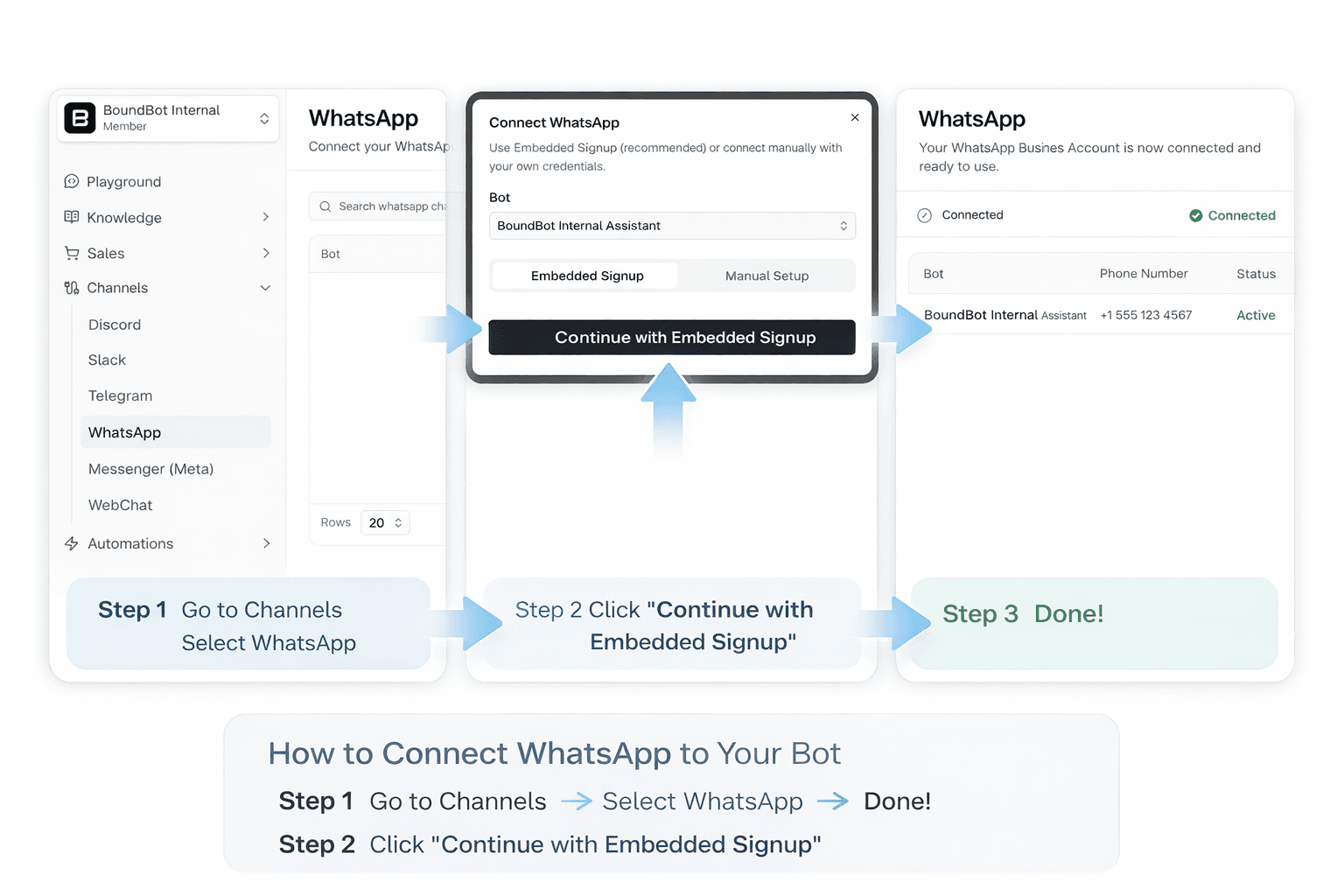
whatsapp chatbot setup using embedded signup in boundbot dashboard step by step connection process
Alternative: Manual Setup Option
If you prefer, you can also use Manual Setup instead of embedded signup.
In this case, you will need to enter:
- Phone Number ID
- Permanent Access Token
- WABA ID (optional)
This option is useful if you already have Meta API credentials ready.
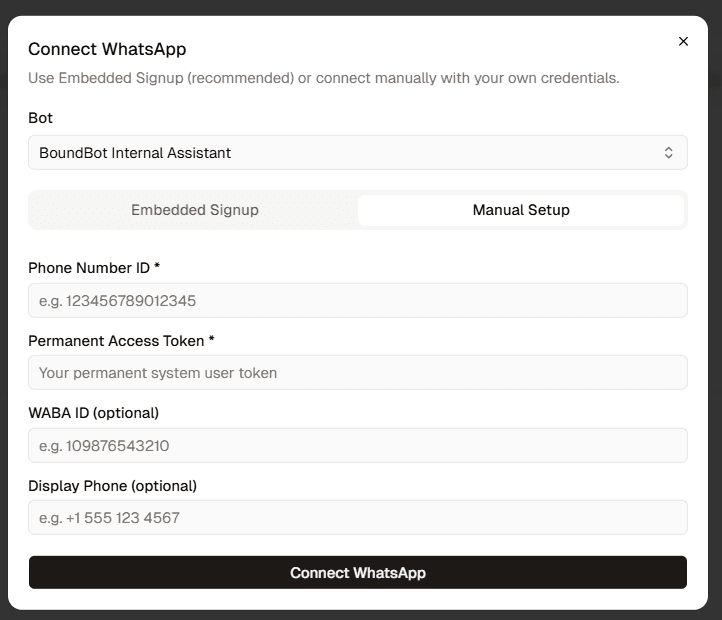
manual whatsapp business api setup in boundbot using phone number id access token and waba id configuration
What Happens After Connection
After setup:
- Users can message your business on WhatsApp
- Your bot replies instantly using its knowledge
- All conversations appear in your unified inbox
- You can step in manually anytime if needed
This is where your bot starts handling real conversations at scale.
Important WhatsApp Rules You Should Know:
WhatsApp works differently from other platforms. There are a few key rules:
- 24-hour messaging window: You can freely reply within 24 hours after a user messages you
- Template messages after 24 hours: If you want to follow up later, you must use approved templates
- User opt-in required: You can’t message users first without their permission
These rules are important because they affect how you design your conversations and follow-ups.
Step 3: Connect Instagram (Meta Messaging API)
After WhatsApp, the next important channel is Instagram.
Many users first discover your business here. They check your posts, view stories, and often send a quick message before taking the next step.
If you’re not replying quickly, you’re losing warm leads.
🔗 How to Connect Instagram to Your Bot
To connect Instagram, you don’t need a separate Instagram option.
As shown in the image above, Instagram is connected through Messenger (Meta), where both Facebook Messenger and Instagram are linked in one flow.
Inside your dashboard, follow these steps:
- Go to the Channels section
- Click on Messenger (Meta)
- Click “+ Connect channel”
- Select your bot
- Click “Continue with Meta”
This will redirect you to Meta’s secure authorization page.
From there, you will:
- Connect your Facebook Page
- Link your Instagram Business account
- Approve all required permissions
Once completed, both Messenger and Instagram will be connected together, and your bot will be ready to respond automatically.
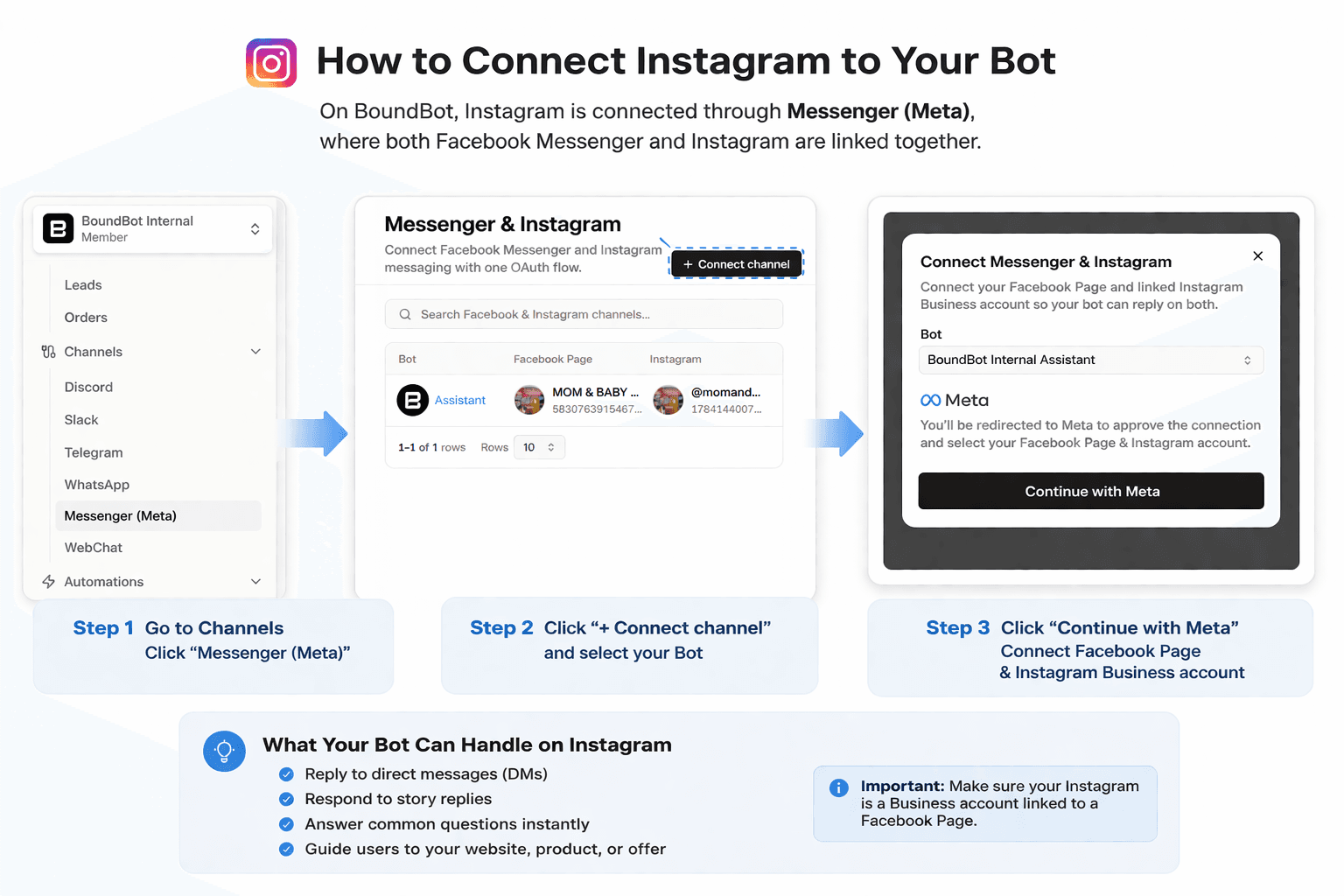
connect instagram chatbot via messenger meta in boundbot dashboard using facebook page and instagram business account authorization
Important Instagram Limitations:
Instagram is not as open as Telegram or website chat. There are a few things to keep in mind:
- Automation mainly works inside DMs, not everywhere
- Some actions (like comments) have limitations
- Aggressive or spam-like automation can be restricted
So it’s better to keep your responses natural and helpful.
Step 4: Connect Telegram (Bot Token & Webhook)
Telegram is one of the easiest platforms to connect and one of the most flexible to work with.
Unlike WhatsApp or Instagram, it has fewer restrictions. That makes it a good option for communities, support, and automation-heavy use cases.
🔗 How to Connect Telegram to Your Bot
To get started, you first need to create a Telegram bot.
Here’s how it works:
- Open Telegram and search for BotFather
- Create a new bot and copy your bot token
- Go to your dashboard
- Select Telegram from the Channels section
- Click “+ Connect channel”
- Paste your bot token
- Click Connect to complete setup
Once connected, your bot is ready to receive and reply to messages instantly.
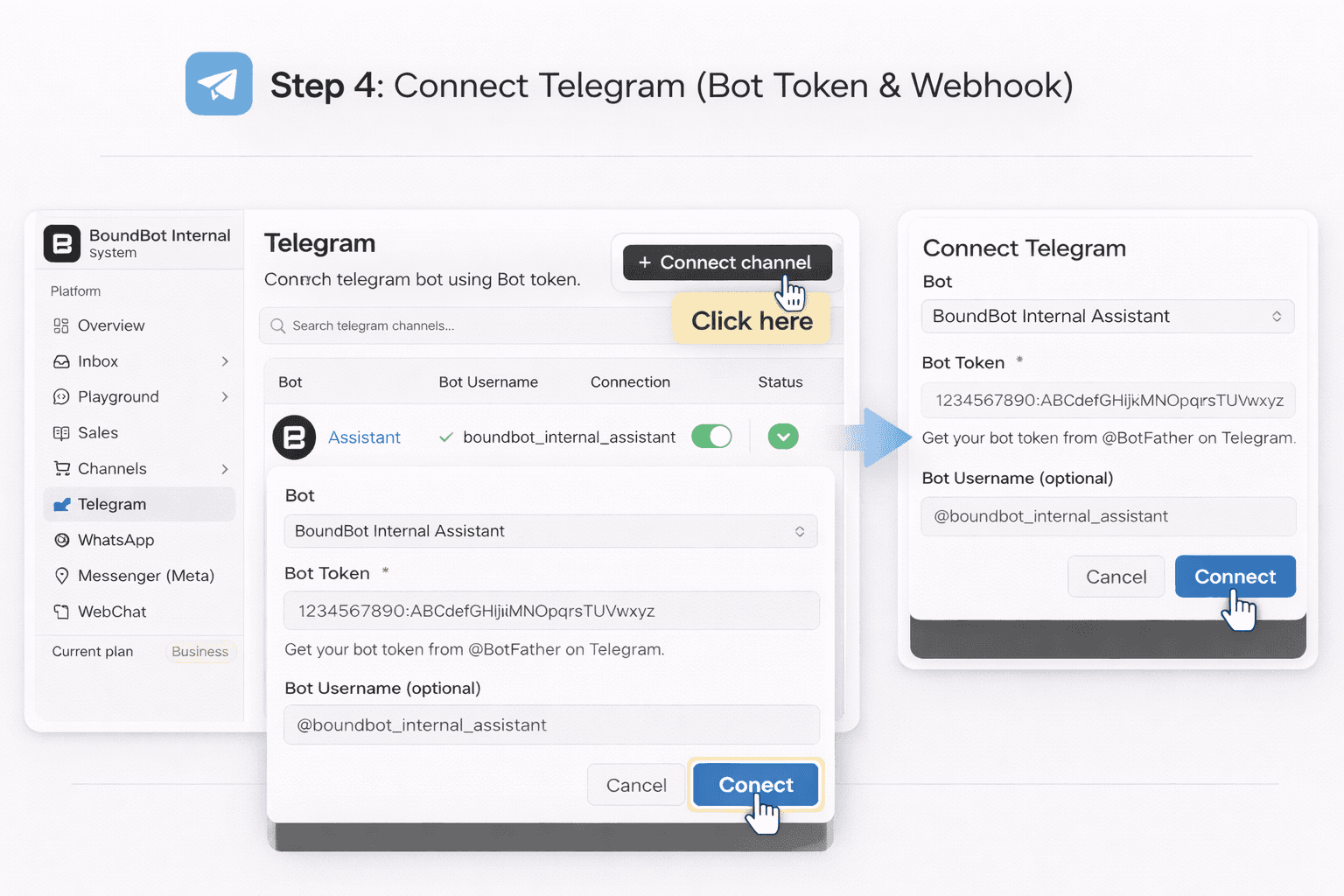
connect telegram chatbot using bot token in boundbot dashboard with connect channel button and setup form
Important Things to Know
There are a few small differences to keep in mind:
- Users usually need to start the conversation first
- Bots often use simple commands like /start
- You may need to guide users on how to interact
These are not limitations, just part of how Telegram works.
Step 5 : Add Website Chat (WebChat Integration)
Your website is where decisions happen.
Users may discover you on Instagram or message you on WhatsApp, but when they land on your website, they are closer to taking action. This is the moment where a fast reply can turn a visitor into a lead.
That’s why WebChat is not just another channel. It’s your highest-intent conversation point.
🔗 How to Add WebChat to Your Website
Setting up WebChat is quick and doesn’t require complex development.
Inside your dashboard (like BoundBot):
- Go to the Channels section
- Select WebChat
- Customize your chat widget (color, title, welcome text)
- Copy the provided script code
- Paste it into your website’s
<head>or before the closing<body>tag
Once added, your chat widget will appear live on your website.
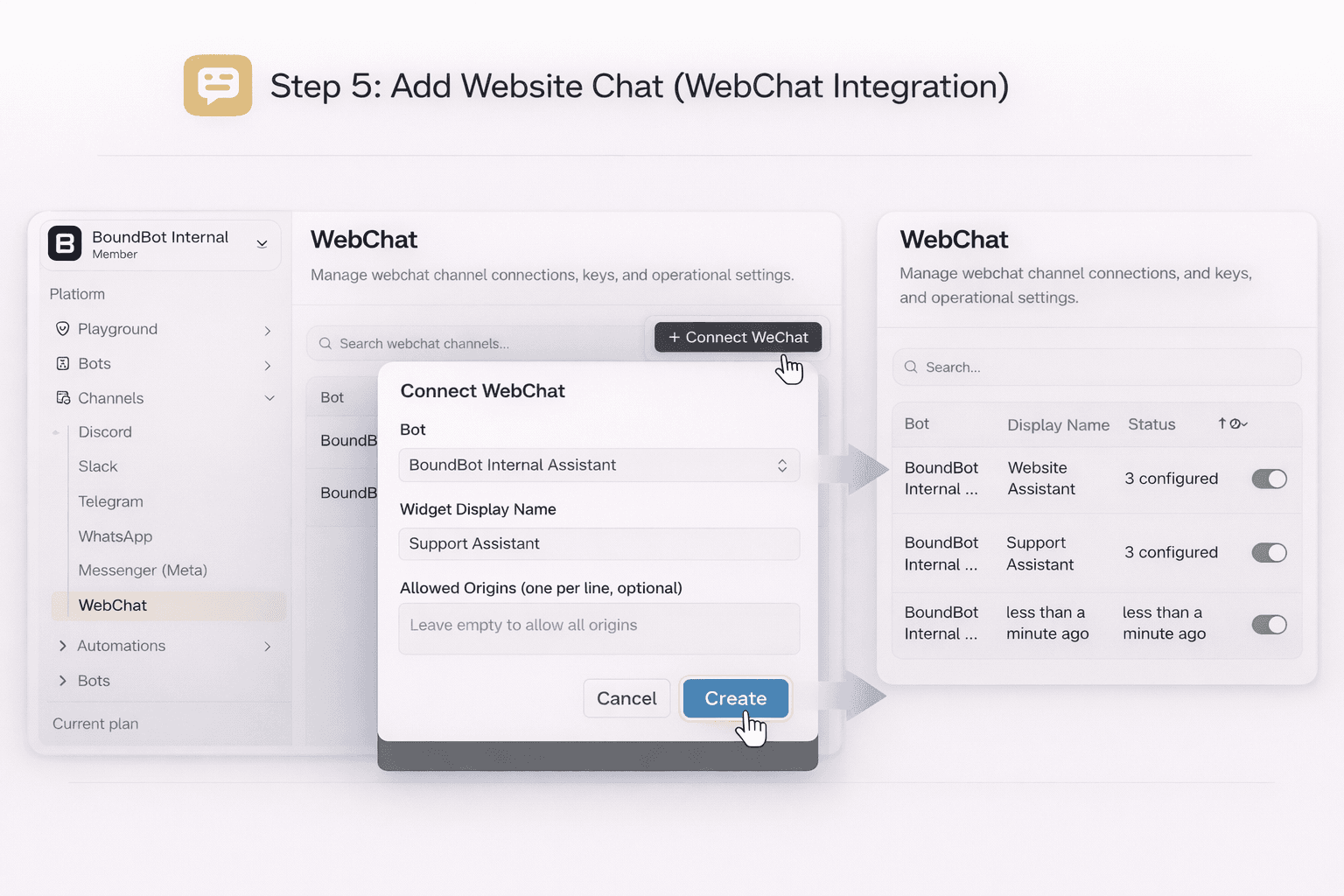
webchat integration setup in boundbot dashboard showing connect webchat button and create widget form
What Happens When a Visitor Starts a Chat
Here’s how the experience works:
- A visitor lands on your website
- They see the chat widget and start a conversation
- Your AI bot replies instantly using your trained knowledge
- The conversation continues naturally
- All messages are saved in your unified inbox
How to Turn Website Chats Into Leads
Just adding chat is not enough. You need to guide users.
To improve results:
- Start with a friendly welcome message
(Example: “Hi, need help choosing the right plan?”) - Add starter questions
(Pricing, services, demo, support) - Keep answers short and clear
- Guide users toward action
(book a demo, sign up, contact team) - Enable lead capture
Ask for name or email when the user shows interest
These small changes can turn casual visitors into real leads.
Common Mistakes to Avoid
- hiding the chat button where users can’t see it
- using long or robotic responses
- not guiding users toward a clear next step
- ignoring chats when human support is needed
A well-placed and well-configured chat can do more than just answer questions. It can move users forward.
Step 6: Manage Everything in One Unified Inbox
Once your bot is connected to WhatsApp, Instagram, Telegram, and your website, all conversations start coming in together. Without a proper system, this quickly becomes hard to manage, with messages spread across different platforms and no clear overview. This is where a unified inbox becomes the most important part of your setup.
Instead of switching between apps, a unified inbox brings every conversation into one place. Platforms like BoundBot are designed to collect messages from all channels into a single dashboard. This means you can see WhatsApp chats, Instagram DMs, Telegram messages, and website conversations together, making it much easier to stay organized.
From a practical point of view, this changes how you handle conversations. Every message is connected to a user, and you can view the full chat history in one place. Even if someone switches from Instagram to WhatsApp, you don’t lose context. Your bot continues responding automatically, and your team can step in whenever needed.
This setup helps your team work faster and with more clarity. Instead of reacting to scattered messages, you start managing conversations in a structured way.
With a unified inbox, you can:
- see all conversations from different platforms in one dashboard
- reply faster without switching between tools
- keep full conversation history for each user
- track leads and user interactions more clearly
- step in manually when the bot needs support
The biggest advantage here is not just convenience, it’s control. Without a unified inbox, messages get missed, responses become inconsistent, and teams waste time moving between platforms. With everything in one place, your workflow becomes smoother, and your communication feels more reliable.
Now that your system is fully connected and organized, the next step is to make it even more efficient with automation across all channels.
Step 7: Automate Conversations Across All Channels
Once your bot is connected and your inbox is organized, automation is what makes the system truly efficient.
Instead of replying to every message manually, your bot can handle common tasks automatically across WhatsApp, Instagram, Telegram, and your website.
With platforms like BoundBot, you can:
- send instant replies to common questions
- share links for pricing or services
- capture leads by asking for user details
- notify your team when human support is needed
This helps you respond faster, reduce manual work, and avoid missing important conversations.
The key is to keep automation simple. Focus on common queries, guide users clearly, and always allow human takeover when needed.
Bringing It All Together: One Bot, One System, All Conversations
Managing conversations across multiple platforms doesn’t have to feel complicated. The real shift is not adding more tools, but building one system that connects everything together.
By deploying one AI bot across WhatsApp, Instagram, Telegram, and your website, you move from scattered chats to a structured flow where every conversation stays connected. Users don’t need to repeat themselves, your team doesn’t need to switch between platforms, and responses stay consistent across every channel.
This setup is not just about automation. It’s about creating a smoother experience for both your users and your team. Faster replies, better visibility, and clear conversation history all work together to improve engagement and reduce missed opportunities.
If you’re just getting started, keep it simple. Set up your bot properly, connect one channel, and expand step by step. Platforms like BoundBot make it easier to manage everything from one place without adding extra complexity.
FAQs About Multi-Channel Chatbot Setup
1. What is a multi-channel chatbot?
A multi-channel chatbot is a single AI bot that works across multiple platforms like WhatsApp, Instagram, Telegram, and your website. Instead of managing separate chats, it handles all conversations in one system. This helps businesses reply faster and keep everything organized.
2. How do I connect one chatbot to multiple platforms?
You can connect one chatbot using platform integrations or APIs. Most tools provide a dashboard where you link WhatsApp, Instagram, Telegram, and web chat step by step. Once connected, the same bot handles messages from all channels.
3. Is WhatsApp chatbot free to use?
No, WhatsApp Business API is not completely free. There are charges based on conversations and message types. You may also need a provider to connect your bot, which can have additional costs depending on usage.
4. Can a chatbot handle customer support automatically?
Yes, a chatbot can handle common customer queries like pricing, services, and basic support. It replies instantly using pre-trained data. For complex questions, it can notify a human or transfer the conversation when needed.
5. Which platform is best for chatbot automation?
It depends on your business. WhatsApp is best for direct communication, Instagram for engagement, Telegram for flexibility, and website chat for conversions. A multi-channel chatbot setup works best because it connects all of them in one system.
LAUNCH THE AGENT. KEEP THE HUMAN CONTROL.
START FREE, CONNECT A CHANNEL, AND SHIP YOUR FIRST BOUNDBOT IN MINUTES.